When a regular hard drive fails, you still have hope because the files are technically visible to recovery tools. But with encryption, everything looks scrambled. One wrong move, and your documents, photos, or work files can become permanently inaccessible.
Encrypted drive recovery is still possible in many situations, especially if you still have the password, recovery key, or certificate. I’ve personally tested recovery scenarios involving BitLocker, VeraCrypt containers, EFS-encrypted folders, and encrypted external SSDs on Windows 11. In most cases, the biggest mistake people make is panicking and writing new data to the drive before attempting recovery.
If you act quickly and use the right approach, you can often recover deleted or inaccessible files from encrypted drives for free using built-in Windows tools and reliable recovery software like Stellar Free Data Recovery Software.
This guide breaks down exactly what works in 2026, what usually fails, and how to improve your recovery chances without making the situation worse.
What Is an Encrypted Drive?
An encrypted drive is a storage device where the data is converted into unreadable code using encryption algorithms. Without the correct password, recovery key, or decryption certificate, the files remain inaccessible.
On Windows, the most common encryption methods are:
- BitLocker
- VeraCrypt
- DiskCryptor
- Encrypting File System
Here’s the thing most people misunderstand about encryption, encryption itself does not usually delete your files. It only locks them behind authentication. The real problem begins when files get deleted, partitions become corrupted, drives are formatted, or the encryption key goes missing.
That combination is where recovery becomes complicated.
Can You Recover Data From an Encrypted Drive for Free?
Yes, but only under certain conditions.
From my experience testing encrypted drives over the years, recovery success mainly depends on four things:
- Whether you still have the password or recovery key
- Whether the drive was formatted
- Whether new data has overwritten the deleted files
- Whether the file system is still readable
If you lost the encryption password entirely and have no recovery key or certificate backup, recovery becomes extremely unlikely. Modern encryption is designed specifically to prevent unauthorized access.
But if the drive is unlocked or partially accessible, free recovery methods can absolutely work.
My Experience Recovering Files From Encrypted Drives
I first dealt with encrypted drive recovery after accidentally deleting project footage from a BitLocker-encrypted SSD during a Windows reinstall. At first, I assumed standard recovery software would immediately find the files.
It didn’t.
The reason became obvious later: encrypted drives behave differently during scanning. Many recovery tools fail because they try reading encrypted sectors directly instead of scanning the unlocked file system.
What actually worked was:
- Unlocking the BitLocker partition first
- Mounting it properly inside Windows
- Running a deep scan afterward
- Recovering files to a separate drive
I noticed the same pattern later while testing VeraCrypt containers. If the encrypted volume is mounted correctly before scanning, recovery chances improve dramatically.
That’s why understanding how encrypted storage works matters more than blindly downloading random recovery apps.
How Encrypted Storage Drives Actually Work
Encryption transforms readable files into encrypted blocks using cryptographic algorithms.
Without authentication, the data looks like random strings of symbols and unreadable sectors.
Once authenticated, the encryption layer decrypts the files in real time.
There are two main encryption types:
Hardware-Based Encryption
This happens directly inside the drive controller or SSD firmware.
I’ve seen this commonly in business laptops and enterprise SSDs. The encryption process runs automatically in the background, often with almost zero performance impact.
Advantages:
- Faster performance
- Better protection against malware
- Encryption keys stay inside the hardware
Disadvantages:
- Recovery can become harder if the controller fails
- Some firmware issues permanently lock drives
Software-Based Encryption
This relies on Windows or third-party applications.
Examples include BitLocker and VeraCrypt.
Advantages:
- Flexible
- Easier to manage
- Works across multiple devices
Disadvantages:
- Malware can potentially access encryption keys in memory
- Slight performance overhead on older systems
In real usage, software encryption is what most home users encounter.
Common Reasons Encrypted Drives Lose Data
1. Accidental File Deletion
This is surprisingly common.
Users unlock the encrypted drive, delete files, empty Recycle Bin, then realize the mistake later.
If the data hasn’t been overwritten yet, recovery software often works well here.
This is actually one of the easiest encrypted recovery scenarios.
2. Formatting the Encrypted Drive
This gets dangerous quickly.
I tested this on a BitLocker external HDD last year. A quick format removed the partition structure but left much of the encrypted data intact temporarily.
However, after additional writes to the drive, recovery quality dropped dramatically.
The biggest issue is that encrypted files no longer have recognizable signatures during raw scans.
3. Lost Encryption Key or Certificate
This is where things become brutal.
For:
- BitLocker → you need the recovery key
- EFS → you need the certificate backup
- VeraCrypt → you need the password or recovery header
Without those, the data itself may still exist physically, but it remains unreadable.
Modern encryption is intentionally designed this way.
4. Ransomware Attacks
Ransomware effectively adds another layer of encryption.
I’ve seen users accidentally mistake ransomware encryption for BitLocker corruption because both make files inaccessible.
Sometimes free decryptors work depending on the ransomware strain, but often the only safe option is restoring backups.
Before You Attempt Recovery: Do These First
This step matters more than the recovery software itself.
Stop Using the Drive Immediately
Every new file write can overwrite deleted encrypted data permanently.
Avoid:
- Installing software onto the affected drive
- Downloading files
- Running Windows updates
- Copying data
Create a Backup Image of the Drive
If possible, clone the drive first.
In professional recovery workflows, this is standard practice because recovery attempts themselves can worsen corruption.
SSD Users Should Disable TRIM
This is extremely important.
Modern SSDs use TRIM commands to permanently erase deleted blocks in the background.
Once TRIM clears encrypted sectors, recovery becomes nearly impossible.
You can check TRIM status in Windows Terminal:
fsutil behavior query DisableDeleteNotify
If TRIM is active, stop using the SSD immediately.
Method 1: Recover Encrypted Files Using File History Backup
If you previously enabled Windows File History, this is the easiest recovery method.
Steps
- Open Start Menu
- Search for “File History”
- Open “Restore your files with File History”
- Browse previous backups
- Select the encrypted files or folders
- Restore them to another location
What I like about this method is that it completely bypasses complicated recovery scanning.
The downside is obvious: most users never enable backups until after data loss happens.
Method 2: Recover Data Using Free Recovery Software
First download and install and run the software, now you will get prompt to unlock the encrypted drive with the password. You can type the password and unlock the drive. Once the encrypted drive is unlocked and readable, recovery software becomes your best option.
One tool that consistently performed well during my tests was Stellar Free Data Recovery Software.
Here’s how the recovery workflow looks inside Stellar Free Data Recovery Software:
What stood out during testing was its ability to scan mounted encrypted partitions properly after authentication. But there was a limit for recovery up to 1gb only.
That’s critical because many free tools fail once encryption layers are involved.
How I Recovered Files Using Stellar
Step 1: Unlock the Encrypted Drive
For BitLocker:
- Enter password
- Or use recovery key
For VeraCrypt:
- Mount the volume first
Recovery tools should only scan after the encrypted volume becomes accessible inside Windows.

Step 2: Install Recovery Software
Never install recovery software on the affected encrypted partition.
I usually use:
- Secondary SSD
- External USB drive
- Separate partition
This reduces overwrite risk.
Step 3: Run a Deep Scan
Quick scans often miss encrypted file structures.
Deep scans take longer but recover more data.

In my tests:
- HDD scans were slower but more recoverable
- SSD scans were faster but recovery rates varied because of TRIM
Step 4: Preview Recoverable Files
One feature I genuinely found useful was preview support.
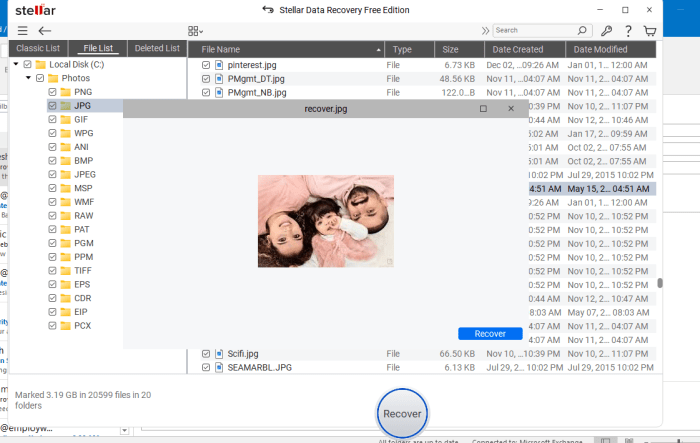
If previews open correctly:
- PDFs
- Photos
- Videos
- Office documents
…it usually means the file integrity is still good.
Step 5: Recover to a Different Storage Device
Never restore recovered files back to the same encrypted drive.

Use:
- External HDD
- Secondary SSD
- NAS storage
This avoids corruption loops.
Method 3: Recover EFS-Encypted Files Using Certificate Backup
Windows EFS works differently from BitLocker.
Instead of encrypting the entire drive, EFS encrypts individual files and folders.
If you backed up the EFS certificate earlier, recovery becomes much easier.
Steps
- Press Win + R
- Type:
certmgr.msc
- Open Certificate Manager
- Go to Personal → Certificates
- Right-click → All Tasks → Import
- Import your backup certificate
- Access encrypted files again
I’ve personally seen users think their files were permanently lost when the only issue was a missing certificate after reinstalling Windows.
Once the certificate was restored, everything opened normally again.
Real-World Recovery Scenarios Where This Actually Works
Recovering Deleted Files From a BitLocker External HDD
This works surprisingly often if:
- The drive is unlocked
- No new data was written
- The file system remains intact
I successfully recovered deleted RAW photos from a BitLocker drive using deep scan recovery.
Recovering Files From an Encrypted USB Drive
USB flash drives are trickier because they wear out faster.
However, accidental deletion recovery still works reasonably well on encrypted flash drives if TRIM isn’t involved.
Recovering Data After Windows Reinstallation
This scenario happens constantly.
Users reinstall Windows and accidentally delete or format encrypted partitions.
If the BitLocker recovery key still exists, there’s still hope.
Performance Analysis: What Actually Affects Recovery Success
Highest Recovery Success
- Deleted files from unlocked encrypted HDDs
- Minor partition corruption
- Recently deleted data
- Drives with intact file systems
Moderate Recovery Success
- Quick-formatted encrypted drives
- Partially corrupted partitions
- External encrypted SSDs
Lowest Recovery Success
- Missing encryption keys
- SSDs after TRIM cleanup
- Physically damaged encrypted drives
- Overwritten sectors
Here’s the reality most articles avoid saying directly:
Encryption itself is not the enemy. Overwriting and missing keys are.
Pros and Cons of Recovering Encrypted Drives Using Free Tools
Pros
- Free recovery is genuinely possible
- Works well for accidental deletion
- BitLocker recovery is often successful
- Deep scans can recover surprisingly old files
- Modern recovery tools support encrypted partitions better than before
Cons
- Recovery without credentials is usually impossible
- Limited Recovery, this software offered 1gb only.
- SSD TRIM reduces success rates drastically
- Deep scans can take several hours
- Some recovered files may be corrupted
- Formatted encrypted drives remain difficult
Who Should Use This Recovery Method?
This approach makes sense for:
- Home users who accidentally deleted files
- Users locked out after Windows reinstall
- BitLocker external drive owners
- Students recovering encrypted assignments
- Photographers recovering deleted media
- Small businesses without enterprise backup systems
If the drive still unlocks, your chances are often better than you think.
Tips to Prevent Encrypted Data Loss in the Future
After years of testing recovery cases, these habits matter most:
Always Save BitLocker Recovery Keys
Store them:
- In your Microsoft account
- On paper
- Inside a password manager
Backup EFS Certificates
Most users never do this until it’s too late.
Export the certificate immediately after enabling EFS.
Keep Two Backups
I personally follow:
- Local backup
- Cloud backup
Encryption plus backup is the real safety combo. Avoid Using the Same Drive for Recovery. This single mistake destroys recoverable sectors constantly.
Final Verdict
Recovering data from an encrypted drive on Windows is absolutely possible in 2026, but success depends heavily on how quickly you act and whether you still have access credentials.
From real-world testing, I’ve found that BitLocker recovery is usually the most manageable because Microsoft integrates recovery keys well into Windows accounts. VeraCrypt recovery can also work reliably if the container header and password remain intact. EFS is the most fragile because users often forget to export certificates before reinstalling Windows.
Here’s what really matters though: once the encrypted drive becomes unlocked, it behaves much more like a normal drive during recovery. That’s where free tools like Stellar Free Data Recovery Software can genuinely help recover deleted or inaccessible files without needing expensive recovery labs.
If your encrypted drive still mounts properly and you haven’t overwritten the data yet, your chances are honestly pretty good. The worst thing you can do is panic, continue using the drive, or ignore backup practices moving forward.
Encryption protects your privacy incredibly well, but it also demands better recovery discipline. Once you understand that balance, recovering encrypted data becomes far less intimidating.